
Drop your file
Drag a .litematic from Litematica, a .schem from WorldEdit, a .nbt from a structure block or a .mcstructure from Bedrock onto the drop zone, or choose it from your folder. Up to 8 MB.
Drop a schematic and see what is inside before you paste it into your world: layer maps, a 3D view and the full list of blocks to collect. Files are read in memory and never stored.
Drag a .litematic from Litematica, a .schem from WorldEdit, a .nbt from a structure block or a .mcstructure from Bedrock onto the drop zone, or choose it from your folder. Up to 8 MB.
Step through the layers with the slider. Each map shows one slice from above with the real block textures, and the 3D tab turns the build around.
Open the material list for the whole schematic or for one layer. Counts come with stacks, so you know how many you need to gather.
The viewer reads four formats: .litematic files saved by the Litematica mod, .schem files saved by WorldEdit or any tool that writes the Sponge schematic format, .nbt files saved by the vanilla structure block of Java Edition (the same format as the structures in data packs), and .mcstructure files exported by the structure block of Bedrock Edition. It recognises the format by the file structure, so a wrong extension does not matter.
A .mcstructure file is converted to Java block names for the view. Most blocks map one to one, and blocks that exist only in Bedrock show as unknown grey blocks.
The limits are plain. A file can be up to 8 MB, a build can be up to 512 blocks long on each side, and the whole volume can hold up to 8 million blocks. Old `.schematic` files from before Minecraft 1.13 are not supported. If you have one, load it in WorldEdit and save it again with `//schem save` to get a .schem.
Block names and textures come from the game data and appear in the language of the site. Blocks that come from mods are not part of the game data, so expect them to show without a proper name or texture. The viewer does not keep your file: it is read for the request and dropped. Guests can open ten files per UTC day, free accounts thirty, and Pro has no daily limit.
A sample build at the floor plan, halfway up and at the roof. Your own file uses the same maps.
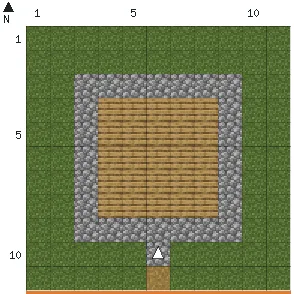
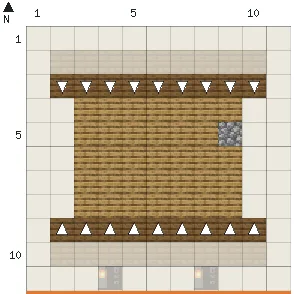
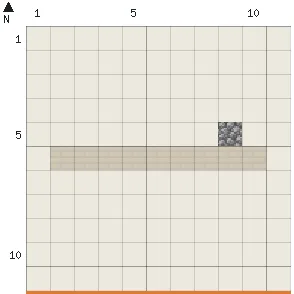
Every map looks down on one layer, with north at the top. Stairs carry a triangle that points up the slope, and a T in the corner marks a top half. Click a material in the list and every cell that uses it lights up, which makes it easy to find the one window block hiding in a wall.
The material list turns blocks into items. A double slab counts as two slabs, a door counts once, a wall torch counts as a torch. Divide by 64 for stacks: the list already shows the result, for example 3 x 64 + 12. Gather the whole list first, then build from the bottom layer up with the "layer below" switch on to line up each course.
If the file is refused, the message says why. The usual causes are an old .schematic file, a file that was cut off during download, a build over 512 blocks on one side, or a file that is empty after air is removed. Looking for ready-made builds instead? Browse the Minecraft blueprints or the Minecraft schematics page.
Viewing your own files is free. Pro removes the daily limit and adds the PDF export, and opens every layer of every blueprint in the catalog.
$0
No account needed to start
$4.99 / month
Billed every month, cancel any time
$14.99 / year
$1.25 a month, billed once a year
Prices in US dollars. Payments are handled by Paddle. You can cancel in your account at any time.
Yes. Guests can open 10 files per UTC day and free accounts 30. Pro has no limit.
Litematica `.litematic` files, WorldEdit or Sponge `.schem` files, `.nbt` files from the Java Edition structure block and data packs, and `.mcstructure` files from the Bedrock structure block, up to 8 MB. A .mcstructure is converted to Java block names, so blocks that exist only in Bedrock show as unknown grey blocks. Old `.schematic` files from before 1.13 are not supported.
No. The file is read in memory for the request and dropped. We only log the action, the format, the size and the time, and you can ask us to delete that log.
The common reasons are the old .schematic format, a damaged or cut-off file, a file larger than 8 MB, a side longer than 512 blocks or more than 8 million blocks in total.
Yes. The 3D tab draws the schematic with the game textures. You can turn it, zoom it and limit it to the layers up to the one you are on.
The viewer is built for vanilla blocks, which show their real names and textures. Blocks from mods are not part of the game data, so expect them without a proper name or texture.
Drop a file and read its layers and materials in a few seconds.
Open a file